[Linux] Configuring a Logitech mouse with Bash scripts
Translated from the Vietnamese original; wording may still be rough. Read the original →
Learning a little more about Linux every day. Normally my Logitech G402 mouse on Windows can be configured with G Hub, but on Ubuntu that is not supported yet. I listen to music a lot and usually set 2 of the 5 side buttons to volume up and down, so with some free time I tried to work it out. Specifically, Key 5 is volume up, Key 4 is volume down.
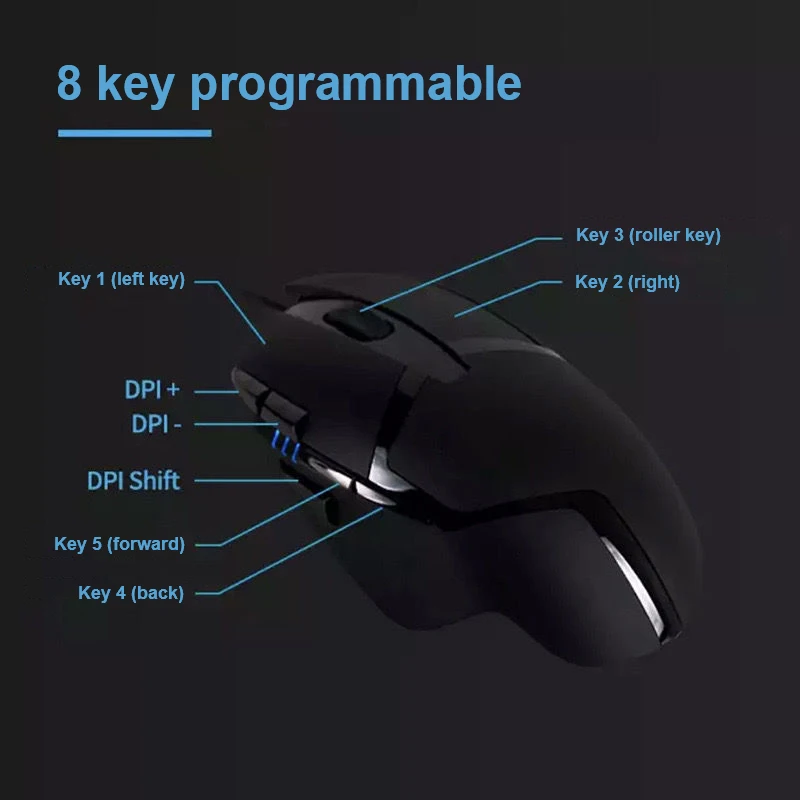
1. Analysis
1.1 Input from the mouse
First we need to check how the computer sees the press events of those 2 buttons on the mouse. We use the evtest command
zk47@ubuntu:/etc/udev/rules.d$ evtest
No device specified, trying to scan all of /dev/input/event*
Not running as root, no devices may be available.
Available devices:
/dev/input/event0:	Sleep Button
/dev/input/event1:	Lid Switch
/dev/input/event2:	Power Button
/dev/input/event3:	AT Translated Set 2 keyboard
/dev/input/event4:	SYNA801B:00 06CB:CEC7 Mouse
/dev/input/event5:	SYNA801B:00 06CB:CEC7 Touchpad
/dev/input/event6:	TPPS/2 Elan TrackPoint
/dev/input/event7:	Logitech Gaming Mouse G402
/dev/input/event8:	Logitech Gaming Mouse G402 Keyboard
/dev/input/event9:	       USB KEYBOARD
/dev/input/event10:	       USB KEYBOARD System Control
/dev/input/event11:	       USB KEYBOARD Consumer Control
/dev/input/event12:	Intel HID events
/dev/input/event13:	ThinkPad Extra Buttons
/dev/input/event14:	Video Bus
/dev/input/event15:	Video Bus
/dev/input/event16:	sof-hda-dsp Mic
/dev/input/event17:	sof-hda-dsp Headphone
/dev/input/event18:	sof-hda-dsp HDMI/DP,pcm=3
/dev/input/event19:	sof-hda-dsp HDMI/DP,pcm=4
/dev/input/event20:	sof-hda-dsp HDMI/DP,pcm=5
Select the device event number [0-20]: [0-20]:
Evtest means event test, i.e. it captures input events; here my machine detected the Logitech Gaming mouse G402 at /dev/input/event7, let's test it
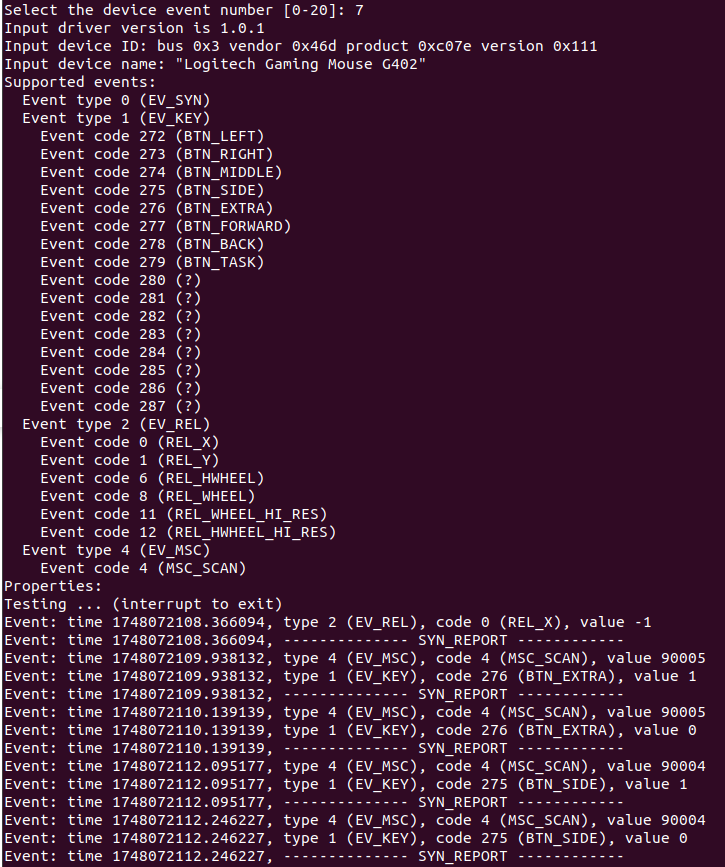
Key 5 on the mouse is BTN_EXTRA, Key 4 on the mouse is BTN_SIDE
And value 1 means pressed, value 0 means released.
So now we know which signal to check and where.
1.2 Commands to raise and lower the volume
pactl set-sink-volume @DEFAULT_SINK@ +5%
pactl: PulseAudio controlset-sink-volume: command option to set the PulseAudio audio volume\@DEFAULT_SINK: automatically detects which audio output is currently in use instead of naming it explicitly+5%: raise the volume by 5% from the current level
2. Let's get started
2.1 The first lines of code
Hehe, once the analysis is done, we just write the code
#!/bin/bash

TARGET_NAME="Logitech Gaming Mouse G402"

# Use /sys to detect the correct event device
for dev in /dev/input/event*; do
    sys_name=$(cat /sys/class/input/$(basename "$dev")/device/name 2>/dev/null)
    if [[ "$sys_name" == "$TARGET_NAME" ]]; then
        TARGET_DEV="$dev"
        break
    fi
done

if [[ -z "$TARGET_DEV" ]]; then
    echo "Device '$TARGET_NAME' not found."
    exit 1
fi

echo "Using device: $TARGET_DEV"

# Start monitoring key events (BTN_EXTRA=276, BTN_SIDE=275)
evtest "$TARGET_DEV" | while read -r line; do
    if echo "$line" | grep -q "EV_KEY.*code 276.*value 1"; then
        echo "Volume Up"
        pactl set-sink-volume @DEFAULT_SINK@ +5%
    elif echo "$line" | grep -q "EV_KEY.*code 275.*value 1"; then
        echo "Volume Down"
        pactl set-sink-volume @DEFAULT_SINK@ -5%
    fi
done
Here I only configure 2 buttons; doing all the buttons for many kinds of mice would be a bit of a pain.
However, running it I hit the following problem. If run with sudo, the pactl command does not work properly; if not run with sudo, the current user has no permission to read input at /dev/input/*.
zk47@ubuntu:~/logitech_mouse$ ./mouse.sh
Using device: /dev/input/event7
evtest: Permission denied
You do not have access to /dev/input/event7. Try running as root instead.
zk47@ubuntu:~/logitech_mouse$ sudo ./mouse.sh
Using device: /dev/input/event16
Connection failure: Connection refused
pa_context_connect() failed: Connection refused
So the user zk47 does not have input permission yet; we check with the groups command
zk47@ubuntu:/etc/udev/rules.d$ groups
zk47 adm dialout cdrom sudo dip plugdev
--> Add the user to input
2.2 Reconfiguring input permissions for the user
Step 1: Create a rule file
To make the configuration permanent for the user, we use udev (userspace device). We create a rule file for it.
sudo nano /etc/udev/rules.d/99-input-permissions.rules
99: high priority (rules are ordered by a number; the bigger the number, the higher the priority)
input-permissions: just a name
.rules: the standard extension
In the rules file we add the following
SUBSYSTEM=="input", GROUP="input", MODE="0664"
KERNEL=="event*", SUBSYSTEM=="input", GROUP="input", MODE="0664"
Rule 1: SUBSYSTEM=="input", GROUP="input", MODE="0664"
SUBSYSTEM=="input"= matches all input devices (mice, keyboards, …)GROUP="input"= set group owner toinputMODE="0664"= set permissionsrw-rw-r--- Owner (root): read + write
- Group (input): read + write
- Others: read only
Rule 2: KERNEL=="event*", SUBSYSTEM=="input", GROUP="input", MODE="0664"
KERNEL=="event*"= matches all/dev/input/event*files- Same permissions as above
- This rule is more specific
Step 2: Add the user to the input group
sudo usermod -a -G input $USER
a: append (does not remove the current groups)
G input: the input group
$USER: the current user
Step 3: Apply changes
# Reload udev rules
sudo udevadm control --reload-rules

# Trigger udev to reprocess existing devices
sudo udevadm trigger

# Or simply reboot
sudo reboot
--> Reboot the computer, run the script and enjoy the result :v