[OrangePi] Fixing wrong colours on the MPI3501 3.5 inch TFT screen
Translated from the Vietnamese original; wording may still be rough. Read the original →
I have an Orange pi zero 2w board, which can be seen as a higher-performance yet cheaper version of the Raspberry Pi Zero 2w. The trade-off is less documentation and less support. I felt this deeply when I ran into a problem where the screen on the board displayed the wrong colours
1. The problem
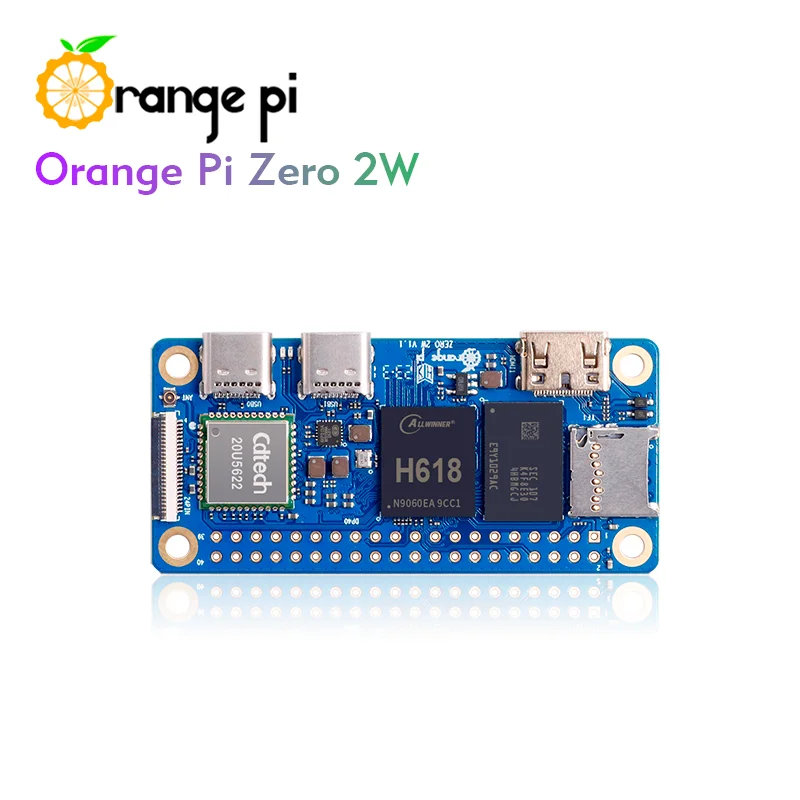
I wanted a screen for display, cheap and convenient to plug in. The board has a mini HDMI output. So there are a few screen options such as
- MPI3508 HDMI screen: about 300 thousand VND from an overseas Shopee seller, but you also need a cable and an adapter, so it comes to about 400 thousand VND.
- Genuine Waveshare SPI screen: https://www.waveshare.com/wiki/3.5inch_RPi_LCD_(C) . Good in every way, but of course genuine is not cheap, ~500 thousand VND
- Clone MPI 3501 SPI screen: http://www.lcdwiki.com/3.5inch_RPi_Display , only 200 thousand VND on Shopee, and SPI is very convenient to plug in
--> Obviously I chose the MPI 3501 clone
The MPI3501 is a clone of the Waveshare screen; both use the ILI9486 controller chip and the ADS7846 touch chip. However, with the same device tree setup, the Waveshare screen shows the correct colours, while the MPI3501 shows wrong colours on the Orange Pi Zero 2W board
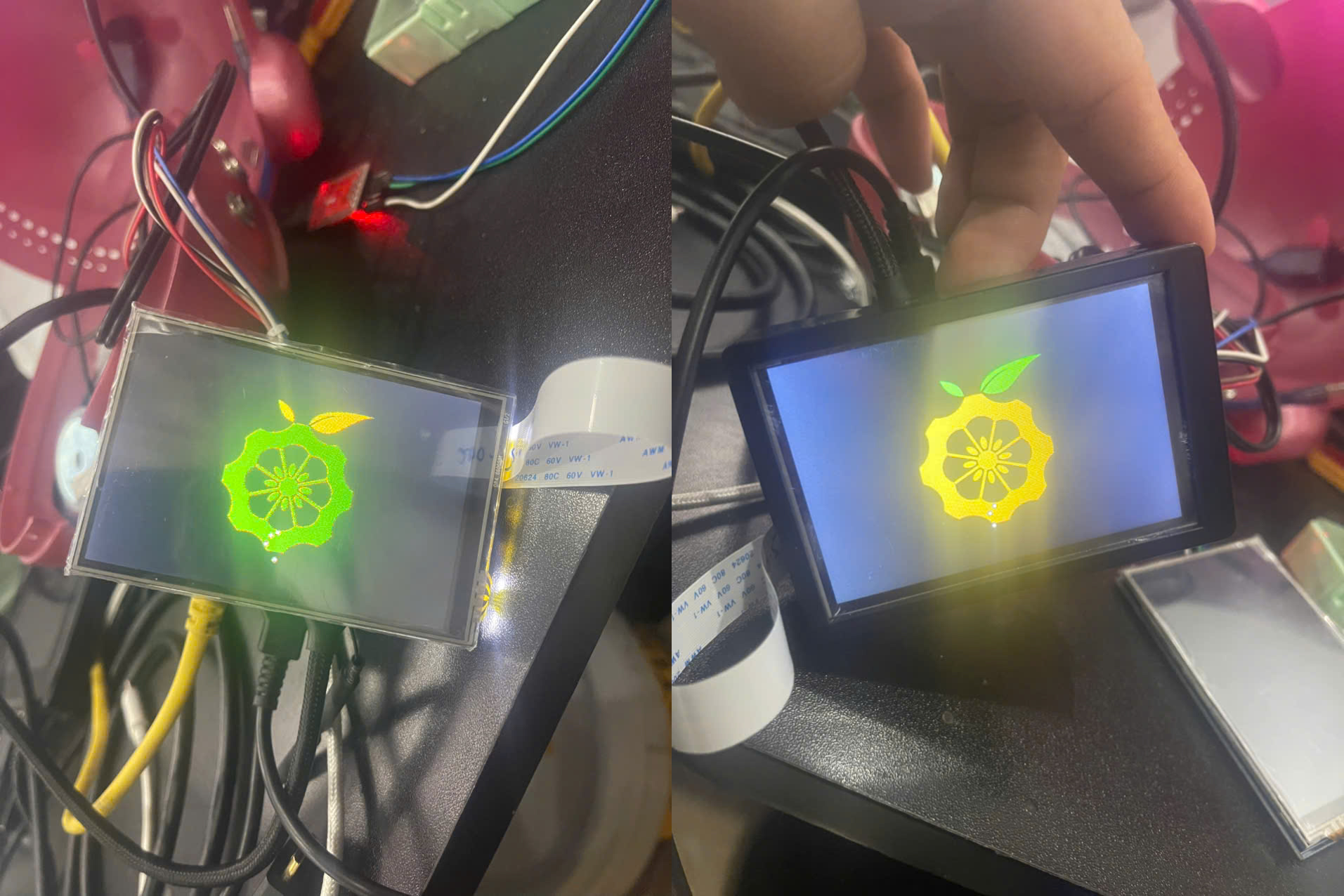
On the left is the MPI3501, on the right the Waveshare screen. Orange Pi should obviously be orange :v
--> Cheap stuff means more work. But after doing it I learned a lot
2. STARTING THE INVESTIGATION
2.1 Installing the overlay
The OS I use is Debian Bookworm, Kernel 6.1. In fact, installation is similar across the images supported on the Orange Pi homepage (http://www.orangepi.org/html/hardWare/computerAndMicrocontrollers/service-and-support/Orange-Pi-Zero-2W.html ). When I got it working I was running Armbian.
I followed the guide here https://github.com/dev-null2019/orangepizero2w35tft . With the Waveshare screen, a reboot gives the correct colours and touch works right away. The clone screen behaves as shown above.
I was afraid the screen itself was faulty, so I also configured it on a Raspberry Pi 4 following the manufacturer (https://github.com/goodtft/LCD-show ), and it showed the correct colours as usual
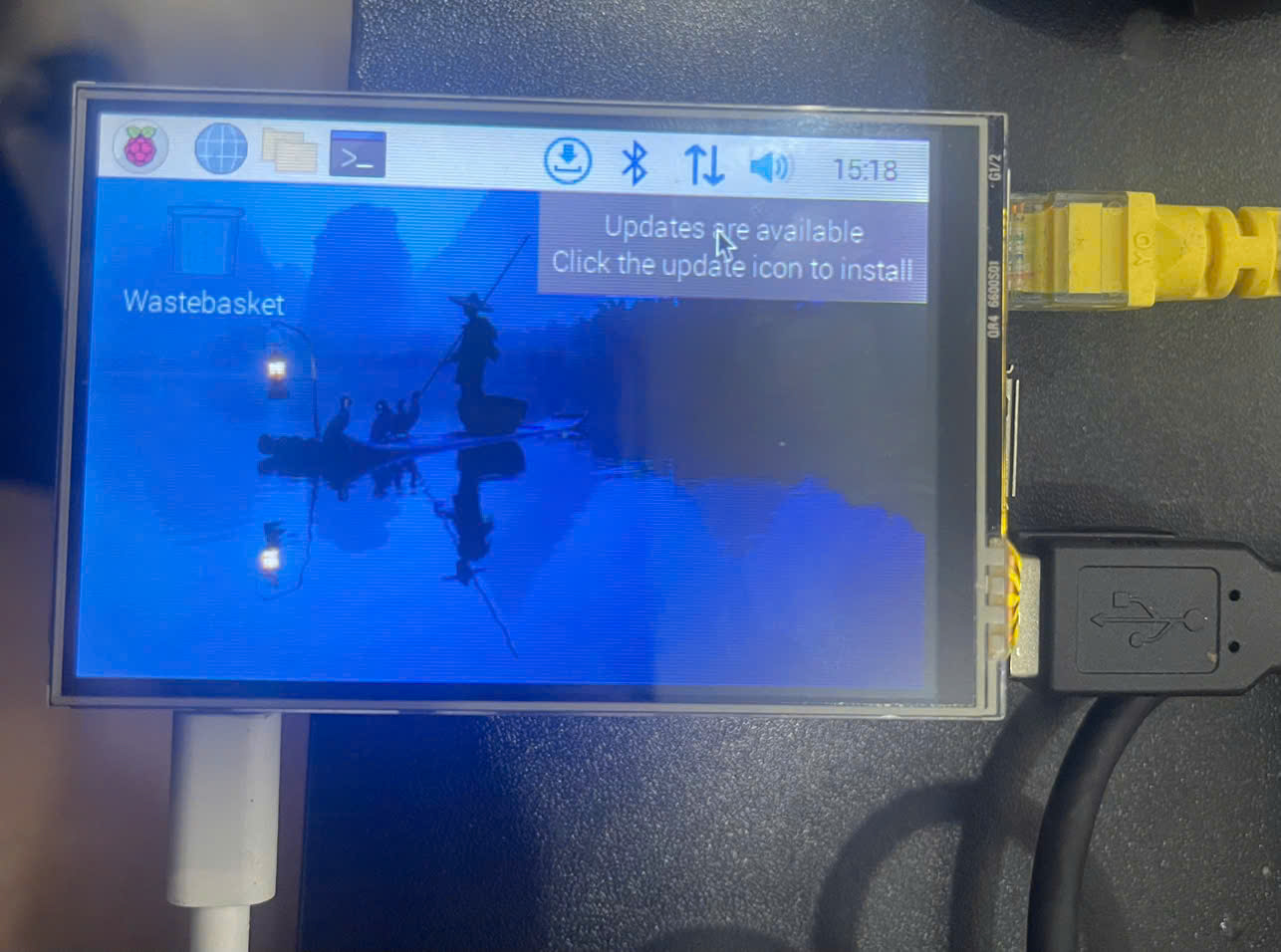
--> It looks like the problem is the driver.
2.2 Checking the driver
2.2.1 On the Raspberry Pi 4
First, since the screen shows correct colours on the Raspberry Pi 4, I checked which driver is used there. On these embedded boards, once the screen is up there is usually a framebuffer device for the driver. Check with the command

Simply put, what your screen displays is this framebuffer. It is raw data. The data here is currently produced by the DRM (Direct Rendering Manager) driver for the ILI9486.
Get the driver name with
cat /sys/class/graphics/fb/name
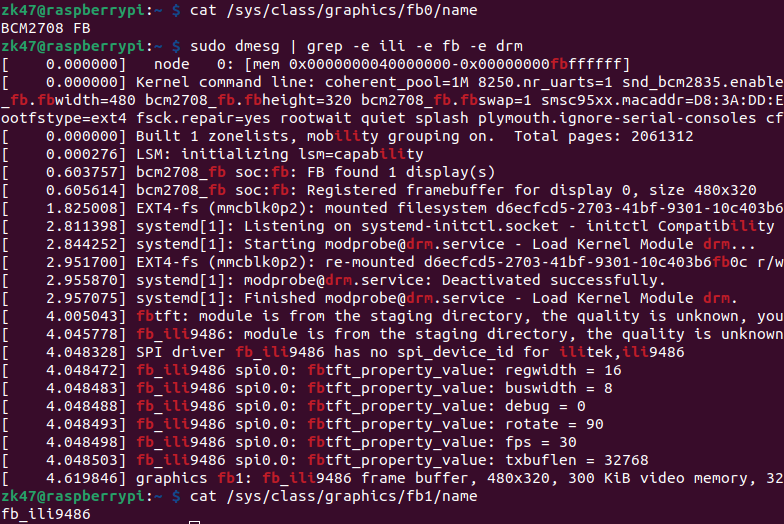
Because HDMI was plugged in earlier, the PI had already taken fb0; plugging in the MPI3501 as well, the board created fb1, with the driver name fb_ili9486
2.2.2 On the Orange Pi Zero 2W
Doing the same on the OPi we get
orangepi@orangepi:/boot$ cat /sys/class/graphics/fb0/name
ili9486drmfb
So the two boards use different drivers.
--> Let's try building the fb_ili9486 driver
2.2.3 Building the fb_ili9486 driver
I looked for the orange pi source code. Checking the name and kernel we get
orangepi@orangepi:/boot$ uname -a
Linux Gigi-Connect 6.1.31-sun50iw9 #1.0.2 SMP Thu Jul 11 17:24:28 CST 2024 aarch64 GNU/Linux
orangepi@orangepi:/boot$ lsb_release -a
No LSB modules are available.
Distributor ID:    Debian
Description:    Orange Pi 1.0.2 Bookworm
Release:    12
Codename:    bookworm
So I went looking for the source code and found https://github.com/orangepi-xunlong/linux-orangepi
I set up the build environment and so on, and got a .ko file to insmod on the orange pi.
However, for some reason insmod always failed with Invalid Symbol and I could not tell where to look, even though the kernel configuration was right, checked with modinfo :v.
--> Switch to checking whether BGR can be changed
2.2 Changing BGR for the screen
I came to this approach after building and installing the driver myself went nowhere. I also read on a forum that fb_ili9486 is no longer supported after kernel 5.4
So visually the screen seems to have its colours inverted, but how do we check that it really is?
--> Write a simple python script and output it to the screen
python3 -c 'open("red.raw", "wb").write(b"\xF8\x00" * 153600)'
sudo dd if=red.raw of=/dev/fb0 bs=1

python3 -c 'open("green.raw", "wb").write(b"\x07\xE0" * 153600)'
sudo dd if=green.raw of=/dev/fb0 bs=1

python3 -c 'open("blue.raw", "wb").write(b"\x00\x1F" * 153600)'
sudo dd if=blue.raw of=/dev/fb0 bs=1
Testing this way made me realise it really does swap the colours
Red. —> blue
Green —> red
Blue. —> green
But is the swap already in the framebuffer, or does it only happen on the way to the screen? --> Just dump the framebuffer itself
sudo ffmpeg -f fbdev -framerate 1 -i /dev/fb0 -vframes 1 framebuffer.png
Opening the png, the colours are still correct :v --> A configuration issue on the screen side
2.3.1 Reading more about the Config:
There are 2 things I read:
https://github.com/goodtft/LCD-show/blob/master/LCD35-show : the manufacturer's installation for the RPI 4
https://github.com/dev-null2019/orangepizero2w35tft : how to add the device tree overlay
--> Both add a device tree to configure the ili9486 and ads7846.
--> One adds it manually, the other uses the built-in orangepi-add-overlay command
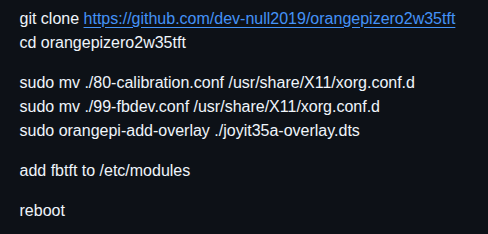
Purpose:
- Create a calibration file for the x11 server (touch calibration as well as fb)
- Compile the dts file to dtbo and copy it to /boot/overlay-user
- Add overlay-user= to /boot/orangepiEnv.txt
2.3.2 Reading the Device tree file carefully
The bgr = field stands out right away. As I understand it, it defines the Blue-green-red order.
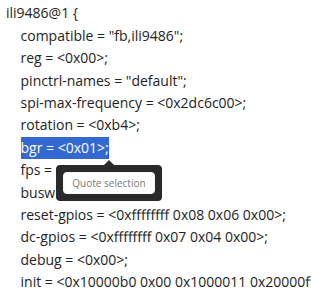
As if I had struck gold, I changed it as above and rebooted
--> Nothing changed
I began to doubt whether this field is even parsed when the device tree is processed. So I had to check.
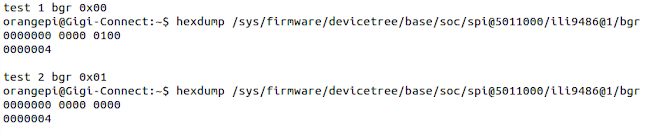
I checked by reading the device tree back, and bgr is applied and changed there
So only one field is left as the most suspicious: the init field
init = ;
--> After reading more of the ILI9486 datasheet I finally found how to change the screen's BGR (https://www.hpinfotech.ro/ILI9486.pdf )
3. SOLUTION
This init field is exactly the init commands sent to the screen at startup, described in detail in section 8 from page 147
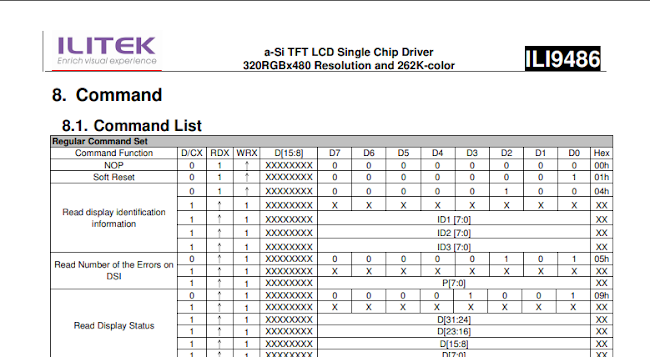
It is Command + Parameter, and pay special attention to Command 36h
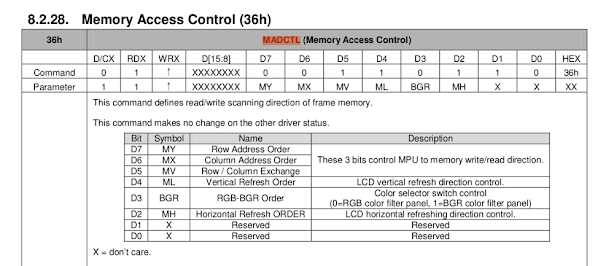
Parameter bit D3 defines whether RGB or BGR is applied
--> This overrides the BGR field defined in the device tree above
--> Let's fix the Device tree. In the init field, for both 0x100036 commands I set the parameter to 0x48 (at first 0x08 did not work, so I tried a few more values, and in the end 0x48 worked :v)
The final device tree has an init like
init = ;
PS: I also had to lower the max speed of spi (I don't really understand why)
And the result after rebooting: the screen shows the correct colours
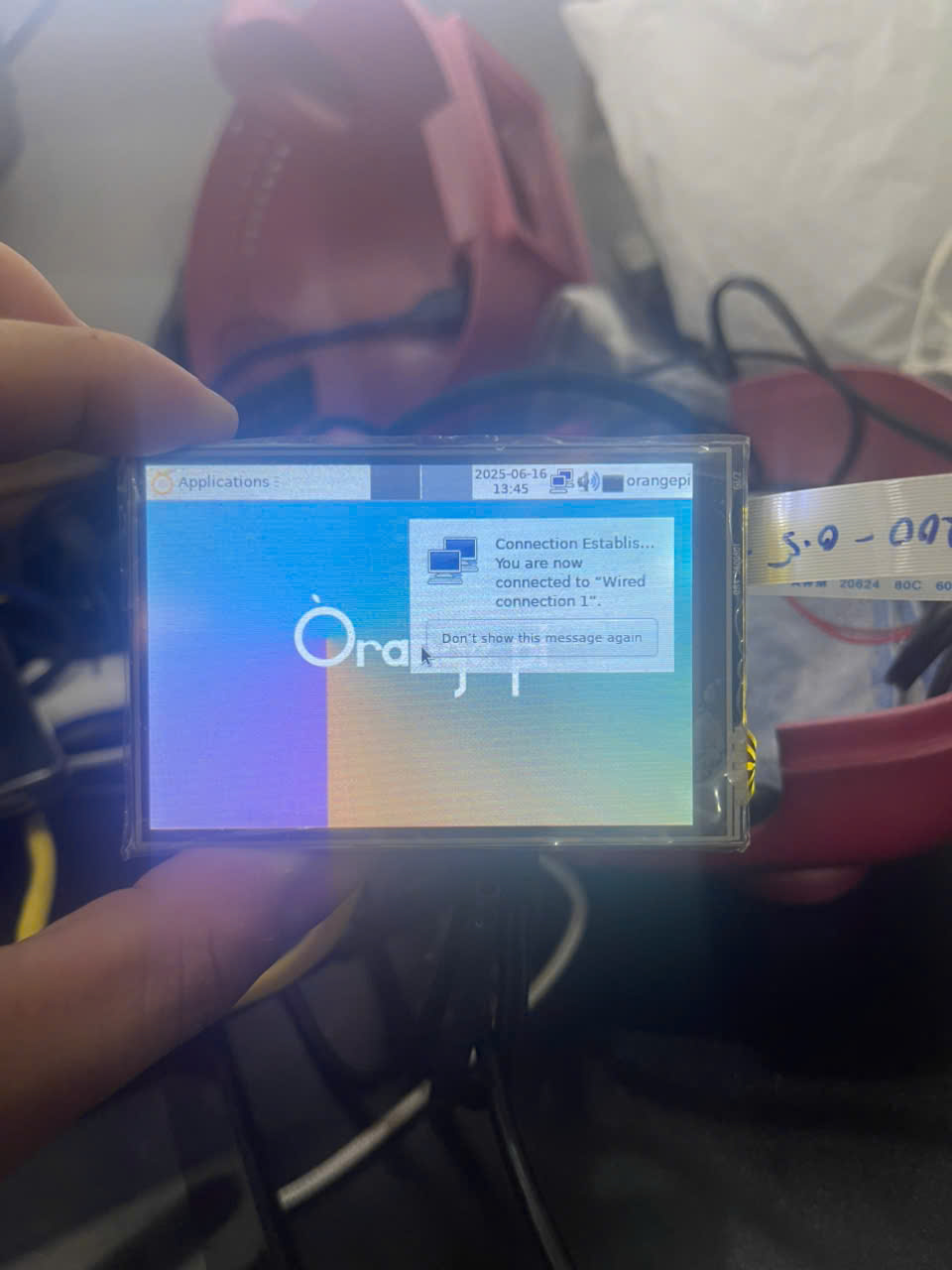
That's all :v
P/s: Huge thanks to robertoj from the Armbian forum
https://forum.armbian.com/topic/52880-orangepi-zero-2w-wrong-color-display-on-mpi3501