[Yocto-BBB] 5. Changing the banner after login
Translated from the Vietnamese original; wording may still be rough. Read the original →
Our goal for this post is that after logging in, the following screen appears
(If you run into difficulties following the blog, you can refer to my hands-on video at the end of the post)
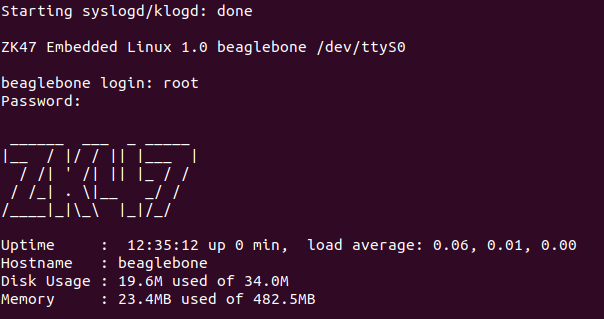
To print this on the screen we need to run some script. To trigger that script we could use a service and install it in systemd, but the setup would be more complicated.
I will aim to use an existing flow to trigger the script I create. I will create services in later posts
1. Writing the script on the board
1.1 The flow after logging in
After some research I learned that the login stage runs the script file /etc/profile
It contains the following code
if [ -d /etc/profile.d ]; then
        for i in /etc/profile.d/*.sh; do
                if [ -f $i -a -r $i ]; then
                        . $i
                fi
        done
        unset i
fi
Simply put, it runs every file ending in .sh in /etc/profile.d. So we put our script file there and it will run automatically after login
1.2 Writing banner.sh
The content of banner.sh is quite simple: I just print a stylised ZK47 line along with Uptime, Hostname, Disk Usage and Memory
Create the file
touch banner.sh
To create text art with your own name, go to https://patorjk.com/software/taag/#p=display&f=Big&t=ZK47 , generate the text, then copy it into the script. My file currently contains the following
#!/bin/sh
echo "
 ______  ___  _ _____
|__  / |/ / || |___  |
  / /| ' /| || |_ / /
 / /_| . \|__   _/ /
/____|_|\_\  |_|/_/

Uptime     : $(uptime)
Hostname   : $(hostname)
Disk Usage : $(df -h | awk '/\/$/ {print $3 " used of " $2}')
Memory     : $(free | awk '/Mem:/ {printf "%.1fM used of %.1fM", $3/1024, $2/1024}')
"
chmod +x banner.sh
cp banner.sh /etc/profile.d/
reboot
Note that here I am logged in as root, because this core-image-minimal does not even have the sudo package
And ok, the change works when adding the script by hand.
2. Create a recipe that copies the script to the board
2.1 Create the recipe
I am currently creating core-image-minimal in recipes-core, so I use the same container. The folder structure is as follows
zk47@zk47-ltu:~/Learning/poky/meta-bbb/recipes-core$ tree
.
├── custom-banner
│   ├── custom-banner
│   │   ├── banner.sh
│   │   └── COPYING.MIT
│   └── custom-banner.bb
└── images
    └── core-image-minimal.bbappend

3 directories, 4 files
The content of banner.sh is the same as in section 1 above
2.2 Content of custom-banner.bb
The file content; here I analyse each variable and field in depth with
bitbake -e custom-banner | grep ^{VAR_NAME}
TMPDIR = "${TOPDIR}/tmp"

FILESEXTRAPATHS:prepend := "${THISDIR}/${PN}:"
SRC_URI = "file://banner.sh file://COPYING.MIT"

DESCRIPTION = "ZK47 login banner with system info"
LICENSE = "MIT"
LIC_FILES_CHKSUM = "file://COPYING.MIT;md5=3da9cfbcb788c80a0384361b4de20420"

S = "${WORKDIR}"

do_install() {
    install -d ${D}${sysconfdir}/profile.d
    install -m 0755 ${WORKDIR}/banner.sh ${D}${sysconfdir}/profile.d/
}
TOPDIR="/home/zk47/Learning/poky/build-bbb"TMPDIR="/home/zk47/Learning/poky/build-bbb/tmp"THISDIR="/home/zk47/Learning/poky/meta-bbb/recipes-core/custom-banner"PN="custom-banner"FILESEXTRAPATHS="/home/zk47/Learning/poky/meta-bbb/recipes-core/custom-banner/custom-bannerS=WORKDIR= "/home/zk47/Learning/poky/build-bbb/tmp/work/armv7at2hf-neon-oe-linux-gnueabi/custom-banner/1.0-r0"D="/home/zk47/Learning/poky/build-bbb/tmp/work/armv7at2hf-neon-oe-linux-gnueabi/custom-banner/1.0-r0/image"sysconfigdir="/etc"
So the tasks I do in this bitbake recipe, in order, are
- Set
build-bbb/tmpas the output for my recipe (if not set, it outputs to build-bbb/tmp-glibc, a default value) - Set
FILESEXTRAPATHSto /recipes-core/custom-banner/custom-banner: I do this because that folder holds all the files I will use, including the files I copy to the board - About
LICENSE, Yocto has a mandatory QA rule:
if a recipe hasSRC_URI, i.e. it installs files into the rootfs, it must haveLICENSEandLIC_FILES_CHKSUM - For
do_install, we use theinstallcommand, an all-in-one command that can create folders (-d) and change file modes (-m).
Here, just as described, I create the /etc/profile.d folder, then copy banner.sh into it and change it to mode 0755
source oe-init-build-env build-bbb
One note: when running this source script, always stand in the folder where poky was cloned (otherwise it cannot find the script, or it creates an extra build-bbb folder)
bitbake custom-banner
We check in WORKDIR
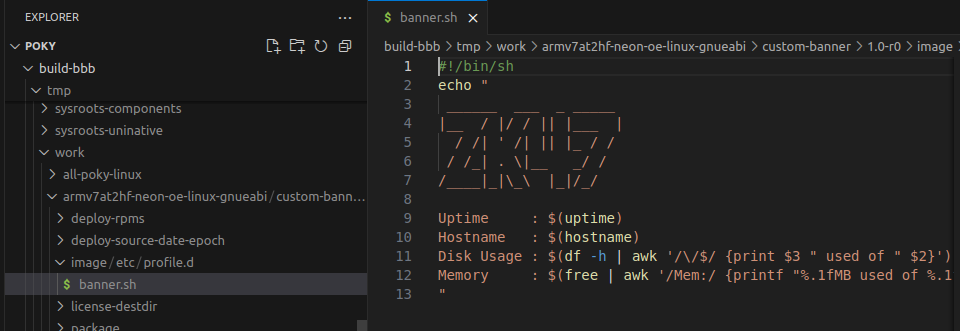
Simply put, when recipes are built, the files in their image folders are merged together and then put into the built image (the image's root file system)
2.3 Last step and test on the board
Although we created a separate recipe, what we build is core-image-minimal, which is a separate recipe. So we have to add a condition that building core-image-minimal also builds custom-banner
So we add the following line to core-image-minimal.bbappend
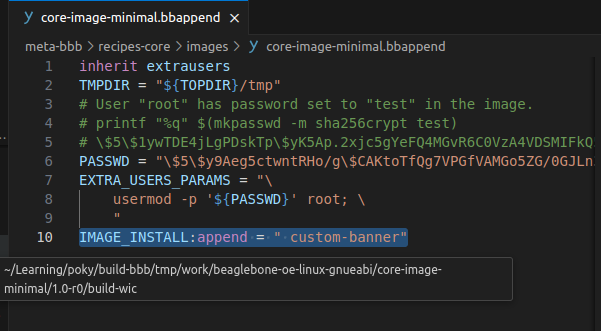
That's it; the last step is to rebuild the image
bitbake -c cleanall core-image-minimal
bitbake core-image-minimal
The final result matches the goal we set :v
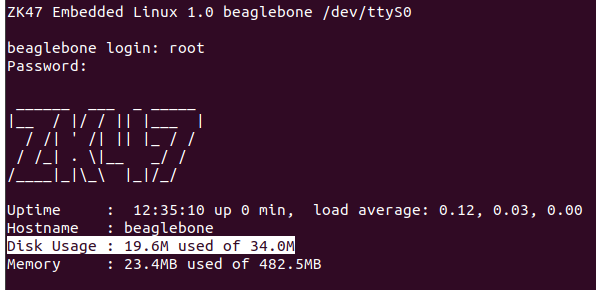
Here, on the banner, we notice something odd. The total Disk usage is only 34Mb, but my SD card is 32gb, so some mechanism makes the RFS (Root file system) fixed-size, not expanding automatically
2.4 Fixing the Root partition size
Checking log.do_image_wic (/home/zk47/Learning/poky/build-bbb/tmp/work/beaglebone-poky-linux-gnueabi/core-image-minimal/1.0-r0/temp/log.do_image_wic) we see a line
INFO: The image(s) were created using OE kickstart file:
  /home/zk47/Learning/poky/meta-ti/meta-ti-bsp/wic/sdimage-2part.wks
The content of sdimage2part.wks is as follows
part --source bootimg-partition --fstype=vfat --label boot --active --align 1024 --use-uuid --fixed-size 128M
part / --source rootfs --fstype=ext4 --label root --align 1024 --use-uuid
You can read more here to add a bbappend that changes it properly https://docs.yoctoproject.org/ref-manual/kickstart.html
We can add the following option for part /
--overhead-factor
With Number greater than 1; the default is 1.3. For example with Number 5, if the Root built is 100mb, wic kickstart defines the Root partition as 500mb.
Another way is to use variables predefined by Yocto to change the size
For example I add the following lines to core-image-minimal.bbappend
IMAGE_OVERHEAD_FACTOR ?= "1.0"
IMAGE_ROOTFS_SIZE ?= "204800"
IMAGE_ROOTFS_MAXSIZE = "2097152"
Changing these parameters helps you optimise the space on the sdcard, but this applies to the image build
After the build you can create partitions on the SD card yourself and resize them as you like.
In the next post I will cover how to enable Ethernet and SSH into the board from CMD as well as Visual Studio Code, stay tuned