[Yocto-Lichee] 0. Building Yocto Zeus for the Lichee Pi Nano
Translated from the Vietnamese original; wording may still be rough. Read the original →
I have decided to use the Lichee Pi Nano as the cheap board for the upcoming Device Driver series. I found a guide from fanning (ninhnn2) showing how to build for this board with Yocto Zeus (3.0), from 6 years ago. Many thanks to him for creating the BSP meta layer for it; the hardest part is already done !!
I tried following it right away and quite a lot of things failed. So this post updates the things I fixed so that, first of all, the image builds. In the next post I will move up to Yocto Scarthgap for the board. So if you want something much simpler, wait for my Yocto-Lichee 1 post
1. Preparing the host machine
There is one big problem: my machine runs Ubuntu 22.04; building Yocto 5.0 is fine, but switching to Yocto 3.0 fails in a huge number of ways (missing headers, symbol changes in glib and other packages).
Since I use 22.04, I have to build with an Ubuntu 20.04 Docker image instead (if you use Ubuntu 24.04 you almost certainly should use Docker, since 24.04 adds a lot of security that makes building very hard). If you already use Ubuntu 20.04, things are much simpler: just install the packages and follow the same steps
Create the docker file
Dockerfile
FROM ubuntu:20.04

ENV DEBIAN_FRONTEND=noninteractive
ENV LANG=en_US.UTF-8

# Yocto Zeus build dependencies
RUN apt-get update && apt-get install -y \
    gawk wget git diffstat unzip texinfo \
    gcc g++ build-essential chrpath socat cpio \
    python3 python3-pip python3-pexpect python3-git python3-jinja2 \
    python3-dev python3-setuptools swig \
    python2 python2-dev \
    libtool autoconf automake \
    xz-utils debianutils iputils-ping \
    libsdl1.2-dev xterm \
    file lz4 zstd \
    locales sudo \
    && rm -rf /var/lib/apt/lists/*

# Locale setup (required by bitbake)
RUN locale-gen en_US.UTF-8
# u-boot 2018.01 uses Python 2 — python2-dev provides the headers for pylibfdt

# Create non-root user (bitbake refuses to run as root)
RUN useradd -m -s /bin/bash builder && \
    echo "builder ALL=(ALL) NOPASSWD:ALL" >> /etc/sudoers

USER builder
WORKDIR /home/builder

CMD ["/bin/bash"]
If you don't have docker yet, follow the guide from Docker itself
How to install Docker
# Add the Docker GPG key + repository
sudo apt update
sudo apt install ca-certificates curl
sudo install -m 0755 -d /etc/apt/keyrings
sudo curl -fsSL https://download.docker.com/linux/ubuntu/gpg -o /etc/apt/keyrings/docker.asc
sudo chmod a+r /etc/apt/keyrings/docker.asc

sudo tee /etc/apt/sources.list.d/docker.sources <<EOF
Types: deb
URIs: https://download.docker.com/linux/ubuntu
Suites: $(. /etc/os-release && echo "${UBUNTU_CODENAME:-$VERSION_CODENAME}")
Components: stable
Architectures: $(dpkg --print-architecture)
Signed-By: /etc/apt/keyrings/docker.asc
EOF

sudo apt update

# Install Docker
sudo apt install docker-ce docker-ce-cli containerd.io docker-buildx-plugin docker-compose-plugin

# Let the user run docker without sudo
sudo usermod -aG docker $USER
newgrp docker

# Verify
docker run hello-world
If you use a real 20.04 machine, install the following packages and configure the locale
sudo apt-get update && sudo apt-get install -y \
    gawk wget git diffstat unzip texinfo \
    gcc g++ build-essential chrpath socat cpio \
    python3 python3-pip python3-pexpect python3-git python3-jinja2 \
    python3-dev python3-setuptools swig \
    python2 python2-dev \
    libtool autoconf automake \
    xz-utils debianutils iputils-ping \
    libsdl1.2-dev xterm \
    file lz4 zstd \
    locales

sudo locale-gen en_US.UTF-8
export LANG=en_US.UTF-8
2. Clone the source code and build
We clone the source code one by one; after fixing it I forked meta-f1c100s on my github. I also opened a pull request, but I don't know whether the author will merge it, so here I use my fix to get it working first
cd ~
mkdir yocto
cd yocto
git clone -b zeus git://git.yoctoproject.org/poky.git
cd poky

# meta layer that supports most tools and libraries needed for a Linux distro
git clone -b zeus https://github.com/openembedded/meta-openembedded.git

# meta layer to compile qt5 and install it into the rom for the LicheePi Nano
git clone -b zeus https://github.com/meta-qt5/meta-qt5.git

# meta layer for the LicheePi Nano board (Linux kernel, u-boot)
git clone -b zeus https://github.com/Zk47T/meta-f1c100s.git
If you use a real machine, here we run
# Initialise the yocto build environment
source oe-init-build-env build-f1c100s

# copy the example configs I prepared
cp ../meta-f1c100s/conf/sample/normal-yocto/bblayers.conf.sample ./conf/bblayers.conf
cp ../meta-f1c100s/conf/sample/normal-yocto/local.conf.sample ./conf/local.conf

bitbake core-image-minimal
And that's it; if you are using Docker, we use
cd ~/yocto/poky

# 1. Build Docker
docker build -t yocto-zeus -f meta-f1c100s/Dockerfile .
# 2. Run the container
docker run -it --name yocto-build -v ~/yocto:/workdir yocto-zeus

# --- TRONG CONTAINER ---
# 3. Init + copy configs + build
cd /workdir/poky
source oe-init-build-env build-f1c100s
cp ../meta-f1c100s/conf/sample/normal-yocto/bblayers.conf.sample ./conf/bblayers.conf
cp ../meta-f1c100s/conf/sample/normal-yocto/local.conf.sample ./conf/local.conf
bitbake core-image-minimal
Building the Docker image takes a while to install the packages, and building core-image-minimal is 1608 tasks; consider tuning these 2 settings if your machine is a VM, to avoid running out of RAM
# BB_NUMBER_THREADS ?= "3"
# PARALLEL_MAKE ?= "-j 3"
Mine is a native machine, so I let it run at full speed
3. Flash and test the image
After the build, the output is at
poky/build-f1c100s/tmp-glibc/deploy/images/f1c100s
The file we care about is (note the file name: it includes the build date, so my name will differ from yours)
core-image-minimal-f1c100s-20260414131351.rootfs.sunxi-sdimg.img
We flash it to the board with the command
sudo dd bs=4M if=core-image-minimal-f1c100s-20260414131351.rootfs.sunxi-sdimg.img of=/dev/sdx conv=fsync
Remember to umount the partitions on /dev/sdx first
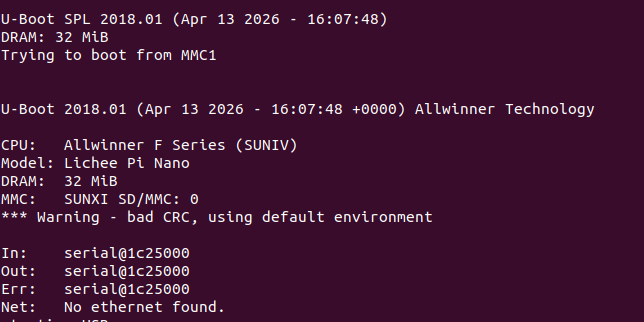
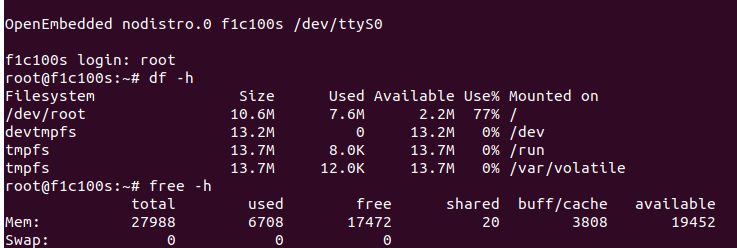
And here is the result
Besides building from scratch like this, you can also download the ready-made image from ninhnn2 here https://fanning.vn/study_licheepinano/markdown.html
Thanks for reading to the end. Good luck with the hands-on !!